


Read summarized version with
 ChatGPT
'%3e%3cpath%20fill-rule='evenodd'%20clip-rule='evenodd'%20d='M16.4875%200V6.06H18.75V14.6833H16.3042V20L10.44%2014.8383V19.9592H9.53083V14.8325L3.66%2020V14.6125H1.25V5.99H3.65333V0L9.53083%205.41167V0.158333H10.4392V5.56667L16.4875%200ZM10.44%207.53667V13.6358L15.395%2017.9975V12.0333L10.44%207.53667ZM9.52417%207.47L4.56917%2011.9683V17.9975L9.52417%2013.6358V7.47083V7.47ZM16.3042%2013.7867H17.8408V6.9575H11.2167L16.3042%2011.5742V13.7867ZM8.81917%206.88667H2.15833V13.7158H3.65833V11.5692L8.81833%206.88583L8.81917%206.88667ZM4.5625%202.06333V5.98833H8.825L4.5625%202.06333ZM15.5783%202.06333L11.3158%205.98833H15.5783V2.06333Z'%20fill='black'/%3e%3c/g%3e%3cdefs%3e%3cclipPath%20id='clip0_4212_18220'%3e%3crect%20width='20'%20height='20'%20fill='white'/%3e%3c/clipPath%3e%3c/defs%3e%3c/svg%3e) Perplexity
Perplexity'%3e%3cpath%20d='M9.996%2019.992C9.996%2018.6068%209.73182%2017.3074%209.19632%2016.0936C8.68224%2014.8798%207.96824%2013.8159%207.0686%2012.9163C6.16896%2012.0166%205.11224%2011.3098%203.89844%2010.7957C2.68464%2010.2602%201.38516%209.996%200%209.996C1.38516%209.996%202.68464%209.73896%203.89844%209.21774C5.11224%208.68224%206.1761%207.96824%207.0686%207.0686C7.96824%206.16896%208.6751%205.11224%209.19632%203.89844C9.73182%202.68464%209.996%201.38516%209.996%200C9.996%201.38516%2010.253%202.68464%2010.7743%203.89844C11.3098%205.11224%2012.0238%206.1761%2012.9234%207.0686C13.823%207.96824%2014.8798%208.68224%2016.1007%209.21774C17.3145%209.73182%2018.614%209.996%2019.9991%209.996C18.614%209.996%2017.3145%2010.2602%2016.1007%2010.7957C14.8869%2011.3098%2013.823%2012.0166%2012.9234%2012.9163C12.0238%2013.8159%2011.3098%2014.8726%2010.7743%2016.0936C10.2538%2017.327%209.98905%2018.6533%209.996%2019.992Z'%20fill='url(%23paint0_radial_4212_18233)'/%3e%3c/g%3e%3cdefs%3e%3cradialGradient%20id='paint0_radial_4212_18233'%20cx='0'%20cy='0'%20r='1'%20gradientUnits='userSpaceOnUse'%20gradientTransform='translate(-1.13275%205.96185)%20rotate(18.68)%20scale(21.2772%20170.46)'%3e%3cstop%20offset='0.07'%20stop-color='%239168C0'/%3e%3cstop%20offset='0.34'%20stop-color='%235684D1'/%3e%3cstop%20offset='0.67'%20stop-color='%231BA1E3'/%3e%3c/radialGradient%3e%3cclipPath%20id='clip0_4212_18233'%3e%3crect%20width='20'%20height='19.992'%20fill='white'/%3e%3c/clipPath%3e%3c/defs%3e%3c/svg%3e) Gemini
Gemini'%3e%3cpath%20d='M3.92888%2013.2962L7.86008%2011.0903L7.92585%2010.8981L7.86008%2010.7918H7.66782L7.01009%2010.7513L4.76369%2010.6906L2.81581%2010.6097L0.928632%2010.5085L0.453044%2010.4073L0.0078125%209.82039L0.0533475%209.52694L0.453044%209.25879L1.02476%209.30939L2.28962%209.3954L4.18692%209.52694L5.56309%209.60789L7.60204%209.82039H7.92585L7.97138%209.68884L7.86008%209.60789L7.77407%209.52694L5.811%208.19631L3.68603%206.78978L2.57295%205.98027L1.97088%205.57045L1.66731%205.18593L1.53577%204.34607L2.08219%203.74399L2.81581%203.79459L3.00301%203.84518L3.74674%204.4169L5.33541%205.64634L7.40979%207.1743L7.71335%207.42727L7.83478%207.34126L7.84996%207.28055L7.71335%207.05287L6.5851%205.01391L5.38095%202.93954L4.84465%202.07943L4.70298%201.56337C4.65239%201.35087%204.61697%201.17379%204.61697%200.956236L5.23928%200.111308L5.58332%200L6.41307%200.111308L6.76218%200.414875L7.27824%201.59373L8.11305%203.45054L9.40827%205.97521L9.78773%206.72401L9.9901%207.41715L10.066%207.62965H10.1975V7.50822L10.3038%206.08652L10.5011%204.34101L10.6934%202.09461L10.7591%201.46218L11.0728%200.703263L11.6951%200.293448L12.1808%200.526183L12.5805%201.0979L12.5249%201.46724L12.2871%203.01037L11.8216%205.42879L11.5181%207.04781H11.6951L11.8975%206.84543L12.7171%205.75765L14.0933%204.03744L14.7005%203.35441L15.4088%202.60056L15.8641%202.24134H16.7242L17.3567%203.18239L17.0733%204.15381L16.1879%205.277L15.4543%206.22818L14.4019%207.64483L13.7442%208.77814L13.8049%208.86921L13.9618%208.85403L16.3397%208.34809L17.6248%208.11536L19.1578%207.85226L19.851%208.17607L19.9269%208.50493L19.6537%209.17784L18.0144%209.5826L16.0918%209.96711L13.2282%2010.6451L13.1927%2010.6704L13.2332%2010.721L14.5234%2010.8424L15.0749%2010.8728H16.4257L18.9403%2011.06L19.598%2011.4951L19.9926%2012.0263L19.9269%2012.4311L18.915%2012.9471L17.5489%2012.6233L14.3615%2011.8644L13.2686%2011.5912H13.1168V11.6823L14.0275%2012.5727L15.6972%2014.0804L17.7867%2016.0233L17.893%2016.5039L17.6248%2016.8834L17.3415%2016.8429L15.5049%2015.4617L14.7966%2014.8394L13.1927%2013.4885H13.0865V13.6302L13.4558%2014.1715L15.4088%2017.106L15.51%2018.0066L15.3683%2018.3L14.8624%2018.4771L14.3058%2018.3759L13.1624%2016.7721L11.9835%2014.9658L11.0324%2013.3468L10.916%2013.4126L10.3544%2019.4586L10.0913%2019.7673L9.48416%2020L8.97821%2019.6155L8.71006%2018.9932L8.97821%2017.7637L9.30202%2016.1599L9.56511%2014.8849L9.80291%2013.3013L9.94457%2012.7751L9.93445%2012.7397L9.81808%2012.7549L8.62405%2014.3941L6.80771%2016.848L5.37083%2018.386L5.02679%2018.5226L4.42977%2018.214L4.48542%2017.6625L4.81935%2017.1718L6.80771%2014.642L8.0068%2013.0736L8.7809%2012.168L8.77584%2012.0364H8.7303L3.44824%2015.4667L2.50718%2015.5882L2.10242%2015.2087L2.15302%2014.5864L2.34528%2014.384L3.93394%2013.2912L3.92888%2013.2962Z'%20fill='%23D97757'/%3e%3c/g%3e%3cdefs%3e%3cclipPath%20id='clip0_4212_18270'%3e%3crect%20width='20'%20height='20'%20fill='white'/%3e%3c/clipPath%3e%3c/defs%3e%3c/svg%3e) Claude
Claude'%3e%3cpath%20d='M7.77353%2012.0388L14.278%207.23827C14.5972%207.00347%2015.0534%207.09396%2015.205%207.46044C16.0048%209.38782%2015.6469%2011.7045%2014.0559%2013.296C12.4648%2014.8862%2010.2512%2015.2348%208.22684%2014.4407L6.01614%2015.4643C9.18686%2017.631%2013.0375%2017.0949%2015.4431%2014.6885C17.3517%2012.7811%2017.9424%2010.1807%2017.3896%207.83507L17.3941%207.83956C16.5927%204.39408%2017.5906%203.01744%2019.6366%200.202196C19.6839%200.135341%2019.7332%200.0676703%2019.7821%200L17.0908%202.6901V2.68113L7.7719%2012.04M6.43072%2013.2047C4.15521%2011.0323%204.54778%207.66916%206.48861%205.72874C7.92395%204.29299%2010.2773%203.7076%2012.3307%204.56815L14.5369%203.55024C14.1398%203.26326%2013.6303%202.95507%2013.0453%202.73738C10.4045%201.65058%207.24114%202.19113%205.09403%204.3362C3.02927%206.40055%202.37948%209.57493%203.49441%2012.2838C4.32765%2014.3078%202.9616%2015.7407%201.58578%2017.185C1.097%2017.6966%200.609043%2018.2098%200.214844%2018.752L6.42787%2013.2047'%20fill='black'/%3e%3c/g%3e%3cdefs%3e%3cclipPath%20id='clip0_4212_18265'%3e%3crect%20width='20'%20height='18.752'%20fill='white'/%3e%3c/clipPath%3e%3c/defs%3e%3c/svg%3e) Grok
GrokPopup targeting determines when your campaigns appear, who sees them, and on which pages.
It's simple: get it right, and you'll see higher conversion rates without hurting user experience. Get it wrong, and you'll annoy visitors while missing opportunities.
This guide walks you through everything you need to know about targeting popups effectively in Wisepops or any other popup software. We've included data from A/B tests across 1.8 million visitor sessions, plus practical examples you can implement today.
Get started:
Set up popups on your website in 30 minutes
190+ templates for quick setup
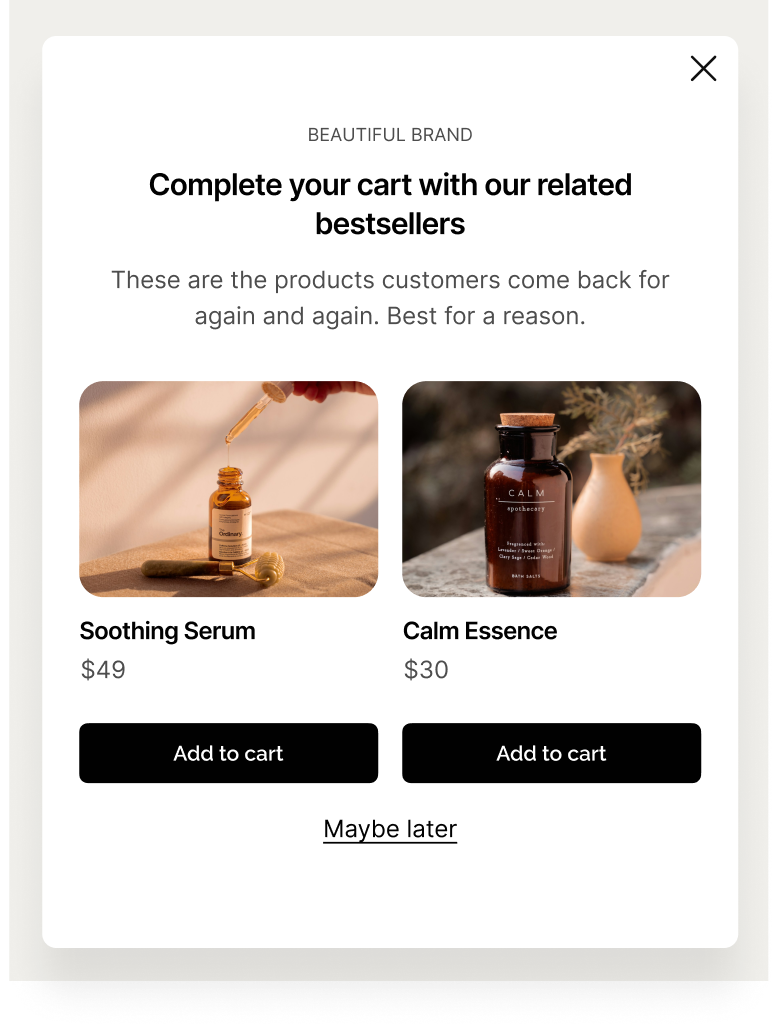
Add product recommendations to improve product discovery
Make every upsell offer relevant using deep visitor targeting or AI

No cc required • 14-day free trial • Used by 1,500+ businesses
Understanding display rules
Display rules control your popup's behavior across five key areas:
Trigger: What action starts the popup (exit intent, scroll depth, time delay)
Page targeting: Which URLs display the popup
Audience: Who sees the popup based on their characteristics
Frequency: How often visitors encounter the popup
Advanced targeting: Additional filters like device type, traffic source, or custom data
Think of these as layers—start with one layer and add more as you refine your strategy.
Example of display rules strategy
An online clothing store wants to promote a summer sale popup.
They:
Trigger on exit intent (when visitors try to leave)
Page targeting includes all product pages but excludes checkout
Audience targets returning visitors only, since new visitors see a different campaign
Frequency is set to show once per 7 days after closing
Advanced targeting adds a filter for desktop users, since mobile gets a different format.
These five display rule layers work together to show the right popup to the right person at the right time!
Trigger types

On landing
Your popup appears immediately when someone arrives on a page.
When to use it:
Important site-wide announcements
Flash sales with countdown timers
Legal compliance notices
Performance warning: Immediate popups (under 5 seconds) can increase bounce rate by up to 5 times. Our data shows that delayed popups (20-50 seconds) reduce bounce by up to 45% while increasing email capture by 20-43%.
Better approach: Add a 5-10 second delay or require visitors to view at least 2 pages before showing your popup.
Example:
Show welcome offer to first-time visitors after 8 seconds on homepage
Exit intent
The popup triggers when someone's about to leave your site. On desktop, this happens when the cursor moves toward the browser's close button or back button. On mobile, it detects navigation attempts.
When to use it:
Last-chance discount offers
Cart abandonment recovery
Newsletter signups before leaving
Feedback surveys
Smart targeting: Combine exit intent with engagement metrics. Instead of targeting everyone who tries to exit, target only visitors who've viewed 3+ pages. These engaged visitors are more likely to convert.
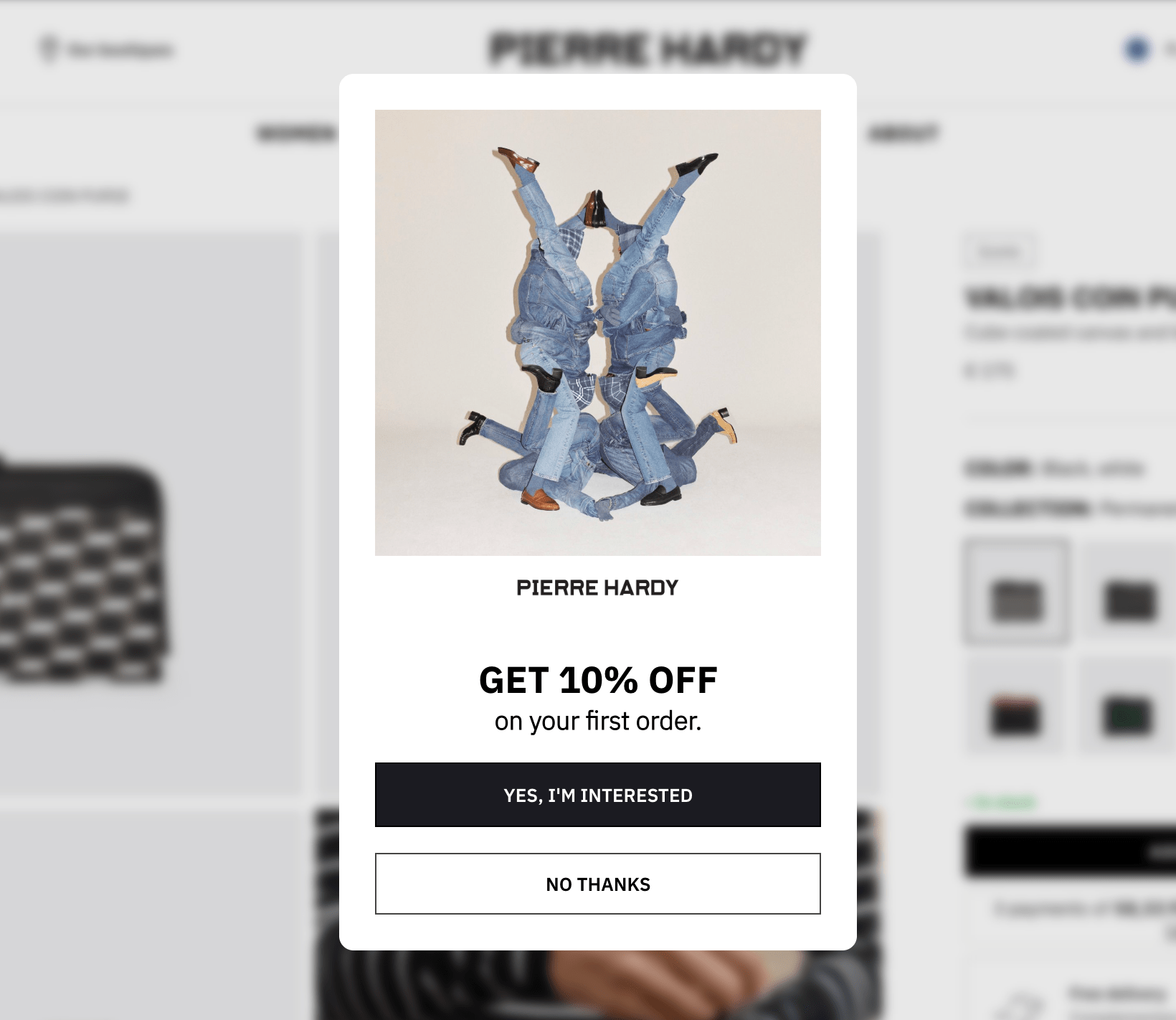
According to our A/B tests, exit intent popups with numeric discounts ("Get 15% off") generate 27% more clicks than emotional messaging ("We'd hate to see you go").
Example:
Target visitors who viewed 5+ pages and attempt to exit:
"Wait! Take 15% off your first order"

On scroll
The popup appears when visitors scroll to a specific percentage of your page.
When to use it:
Content engagement popups on blogs
Newsletter signups after reading
Related product suggestions
Recommended scroll depths:
25%: Early engagement (best for quick announcements)
40-60%: Sweet spot for most content
75%+: Highly engaged visitors only
Example:
At 50% scroll on product pages: "Discover our best seller!"

On click
The popup displays when someone clicks a specific element like a button, link, or image.
When to use it:
Product detail overlays
Video presentations
Size guide popups
Multi-step campaigns
Loyalty program promotions
Newsletter signup
Example:
Click "Learn more about our loyalty program" > Popup that promotes the benefits of signing up

On hover
The popup appears when someone hovers their cursor over an element.
When to use it:
Quick product previews
Help tooltips
Additional product information
Example:
Hover over product image > Show available sizes and colors
On custom event
The popup triggers when a specific JavaScript event fires on your site.
When to use it:
Complex user interactions
Sequential campaign flows
Integration with other tools
Video completion triggers
Example:
Visitor completes 20% of application form or quiz > Show a reminder

Time-based triggers
Add delays to any trigger type for better results.
Our data shows: Delayed popups (20-50 seconds) dramatically reduce bounce rates while increasing conversions. One test showed a 45% bounce rate decrease with a simple 30-second delay.
Recommended delays by page type:
High-intent pages (pricing, specific products): 10-15 seconds
Low-intent pages (blog, general browsing): 20-30 seconds
Exit intent backup: 30+ seconds
Example:
After 15 seconds on a product page: "Need help? Take our product quiz"

Page targeting

URL matching methods
Exact match
Shows popup only on the exact URL you specify.
https://example.com/products/shoesUse for specific landing pages or unique campaign pages.
Contains
Shows popup on any URL containing your specified text.
/products/This targets all product pages at once. Use for category-wide campaigns or section targeting.
Starts with
Shows popup on URLs beginning with your specified text.
https://example.com/blogPerfect for blog posts, knowledge base articles, or any grouped content.

Page targeting case study
MakerFlo personalized their campaigns by pages and achieved a 22.9 CTR and 14.7% order rate.

Strategic page targeting examples
Ecommerce store:
Include: /products/, /collections/
Exclude: /cart, /checkout, /accountSaaS website:
Include: /pricing, /features
Exclude: /app/, /dashboardContent site:
Include: /blog/
Exclude: /about, /contactPages to always avoid targeting
Checkout pages, payment processing pages, thank you pages, or user account areas. These pages have critical conversion flows that shouldn't be interrupted.
Audience targeting

New vs. returning visitors
First-time visitors arrive at your site for the first time. They're building trust and learning about your brand.
Best campaigns:
Welcome messages explaining your value proposition
First-purchase discounts (10-15% off)
Brand introduction content
Email collection with clear value exchange
Strategy: Build trust before asking for commitment. Show a value-focused message on page 1, then a small incentive on page 2.
Returning visitors have seen your site before and already know what you offer.
Best campaigns:
Stronger incentives (they trust you now)
Cart recovery messages
Product recommendations based on browsing history
Loyalty program invitations

Case study
YesPark's strategy to personalize campaigns for new and returning visitors helped capture over 4,000 emails.

Device targeting
Mobile:
Smaller screens require simpler designs
Touch interactions instead of cursor movements
Exit intent works differently
Best campaigns:
App download prompts
Click-to-call offers
Single-field forms (email only)
Design requirements:
Maximum 30% screen coverage
Large, touch-friendly close buttons
Font size 16px minimum (prevents auto-zoom on iOS)
Desktop:
More screen space for complex forms
Better for detailed information
Traditional exit intent works well
Best campaigns:
Multi-field forms
Product comparisons
Video presentations
According to our research, full-screen popups on desktop increase email capture by 48% and click-through rates by 52% on average.

Geographic targeting
Target by country, state/region, or postal code.
Shipping-based targeting:
Location: United States
Message: "Free shipping on orders over $50"
Location: International
Message: "We ship worldwide"Compliance requirements:
Location: European Union
Show: GDPR-compliant consent formsLocal promotions:
Location: New York, NY
Message: "Visit our NYC showroom this weekend"
Visit frequency
First-time visitors (visit_count = 1): Strategy: Build awareness without being pushy
Engaged visitors (visit_count 2-4): Strategy: Nurture with value, introduce offers
High-intent visitors (visit_count 5+): Strategy: Strong call-to-action with time-sensitive offers
Our data shows visitors with 5+ page views in one session demonstrate the highest purchase intent.
Time-based frequency:
Visited 3+ times in last 7 days = Shopping mode, comparing options
Strategy: Provide social proof, product recommendations, or stronger incentivesPageview count
Track how many pages someone views in their current session.
Strategic layering:
Page 1: Welcome popup (subtle)
Page 2: Discount offer popup
Page 5+: Exclusive VIP deal or consultation offerAccording to Wisepops data, waiting until page 2 or later increases median conversion by 39-52%.
Traffic source targeting
Direct traffic
Visitors who typed your URL or used a bookmark. These are often returning customers or people who already know your brand.
Best campaigns: Returning customer offers, loyalty programs, new product announcements
Organic search
Visitors from Google, Bing, and other search engines.
Best campaigns: Content-specific offers, related product suggestions, newsletter signups
Paid advertising
Visitors from Google Ads, Facebook Ads, and other paid channels.
Strategy: Show higher-value offers to improve return on ad spend. You've already paid for the click, so maximize conversion chances.
Traffic source: Paid advertising
Show: Stronger incentive (20% vs 10%)
Trigger: Faster (10s vs 30s)Social media
Visitors from Facebook, Instagram, Twitter, and similar platforms.
Best campaigns: Social proof (user reviews, testimonials), Instagram-style visuals, share incentives
Email campaigns
Visitors from email links.
Important: Wisepops automatically excludes traffic with utm_source=email to prevent popup fatigue for subscribers who already engaged with your email.
Referral traffic
Visitors from other websites.
Best campaigns: Welcome messages, partnership-specific offers, brand introduction
UTM parameter targeting
UTM parameters track campaign performance and enable granular targeting.
Standard UTM parameters:
utm_source: Where traffic came from (google, facebook, newsletter)
utm_medium: How they came (cpc, social, email)
utm_campaign: Campaign name (summer_sale, product_launch)
utm_content: Ad variation (blue_button, header_banner)
utm_term: Keyword (for paid search)
Campaign-specific targeting:
Facebook ad campaign:
UTM parameter: utm_source = facebook AND utm_campaign = summer_sale
Message: "Welcome Facebook friends! Your exclusive 20% off"Influencer partnership:
UTM parameter: utm_source = influencer_name
Message: "Welcome [Influencer] followers! Use code INFLUENCE20"Performance optimization:
Compare conversions between:
- utm_medium = cpc (paid ads)
- utm_medium = organic (free traffic)
Result: Show higher-value offers to paid traffic to improve ROASPast URL history
Target visitors based on pages they've viewed during current or past sessions.
Interest-based targeting:
Past URL contains: /products/running-shoes
Show on homepage: "Back for more running gear? New arrivals inside"Category cross-sell:
Past URL contains: /mens/shoes
Show on: /mens/accessories
Message: "Complete your look with 15% off accessories"Re-engagement:
Past URL contains: /specific-product AND days_since_visit >= 7
Message: "Still thinking about [Product]? Limited stock remaining"Browser and technical targeting
Target by browser type (Chrome, Firefox, Safari, Edge, Opera) or browser language setting.
Use cases:
Browser-specific compatibility messages
Multi-language site targeting
Localized offers based on browser language
A 60-day popup roadmap that proves real ROI
See an implementation plan that helps turn your popups into a measurable growth channel.
Custom properties (advanced)

Custom properties let you create targeting rules using your own data. This requires adding JavaScript to your site.
Ecommerce examples:
Cart value targeting:
javascript
wisepops('properties', { cart_value: 125 });
Then target:
custom_property: cart_value >= 100
Show: "You're $25 away from free shipping"Loyalty points:
javascript
wisepops('properties', {
loyalty_points: 750
});Then target:
custom_property: loyalty_points >= 500
Show: "You have points to redeem"SaaS examples:
User plan:
javascript
wisepops('properties', {
plan_type: 'free'
});Then target:
custom_property: plan_type = 'free'
Show: "Upgrade to unlock premium features"Trial expiration:
javascript
wisepops('properties', {
trial_days_remaining: 2
});Then target:
custom_property: trial_days_remaining <= 3
Show: "Your trial ends soon—subscribe now"Implementation note: Custom properties must be set using JavaScript before your popup triggers. If you use Google Tag Manager, you can define these properties directly from GTM variables without additional coding.
Behavioral targeting combinations
The high-intent visitor:
visit_count >= 3
pageview_count >= 5
time_on_site >= 120 seconds
past_url contains '/products/'This person is seriously shopping. Show time-limited discounts, free consultation offers, or priority support.
The comparison shopper:
visit_count >= 3 in last 7 days
Viewed multiple product pages
No purchase yetThis person needs decision support. Show comparison charts, customer reviews, or satisfaction guarantees.
The cart abandoner:
Added item to cart
Navigating away from checkout
Exit intent triggeredShow an exit popup with discount codes, free shipping reminders, payment options, or security badges.
The window shopper:
pageview_count >= 10
time_on_site >= 180 seconds
Viewed product pages
No cart activityThis person is interested but not convinced. Show social proof, testimonials, or limited-time offers.
Frequency and scheduling

Frequency controls
Don't show again after popup clicked:
User clicked any CTA, so don't show for X days. Best for conversion-focused popups.
Don't show again after popup closed:
User closed without converting, so don't show for X days. Balances persistence with user experience.
Don't show again after popup seen:
User saw popup even without interaction, so don't show for X days. Best for announcements and brand awareness.
Don't show again after email submitted:
User provided email, so never show email collection popups again. This is critical—always exclude subscribers from email capture campaigns.
Recommended frequency settings
Aggressive campaigns (sales, promotions):
Clicked: 7 days
Closed: 1 day
Seen: 12 hours
Standard campaigns (newsletter signup):
Clicked: 30 days
Closed: 7 days
Seen: 3 days
Gentle campaigns (feedback, surveys):
Clicked: 90 days
Closed: 30 days
Seen: 14 days
Campaign scheduling
Time-limited campaigns:
Start: December 1, 2024 00:00
End: December 25, 2024 23:59
Use case: Holiday sale countdownRecurring campaigns:
Active: Every weekend
Time: Saturday 00:00—Sunday 23:59
Use case: Weekend flash saleTime-sensitive triggers:
Start: 7 days before product launch
End: Launch day
Use case: Pre-launch email collectionScheduling tips
Test before live dates by scheduling test campaigns one day early. Consider time zones when scheduling (visitor's local time vs. your time). Remember that countdown timers must end in the future or your popup won't display. For holiday campaigns, start early and end on time. A/B test timing because weekend vs. weekday performance varies by industry.
Conclusion
Effective popup targeting balances conversion goals with user experience. You need aggressive enough timing to capture attention, but respectful enough delays to avoid annoying visitors. You want broad enough reach to build your list, but precise enough targeting to stay relevant.
Start simple and optimize continuously. Begin with basic targeting like new vs. returning visitors. Add one layer at a time—device type, then traffic source, then behavioral triggers. Test changes methodically and let your data guide decisions.
Get started
in minutes
Start converting more visitors today.
Get started in minutes and see results right after.